Create a Clean Modern Website Design in Photoshop

View the article

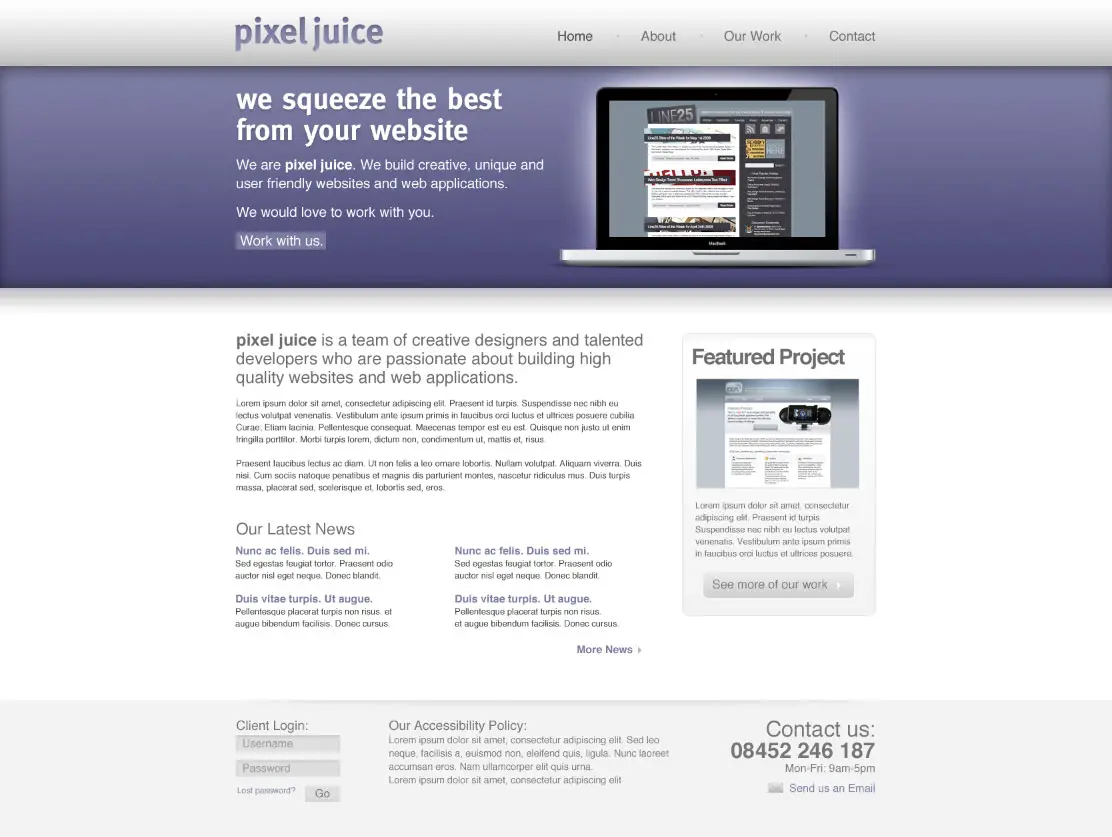
Build a complete website design mockup for a fictional design studio, starting with the creation of the initial layout then moving on to designing the individual page elements. The result is a modern, crisp and clean webpage layout ready for coding.

Photoshop Website Design

Taking inspiration from various modern website designs, we’ll produce this clean and crisp website layout. Key features include horizontal bands to separate the content into specific areas; a colourful header area introducing the site; a friendly welcome message with examples of work; two-column main layout and a resource filled footer.
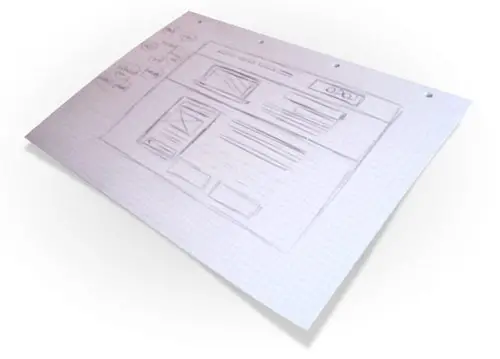
Wireframe

A good start with any design is to sketch out the plans on paper, the free reign of the pencil helps flesh out the rough layout with ease.
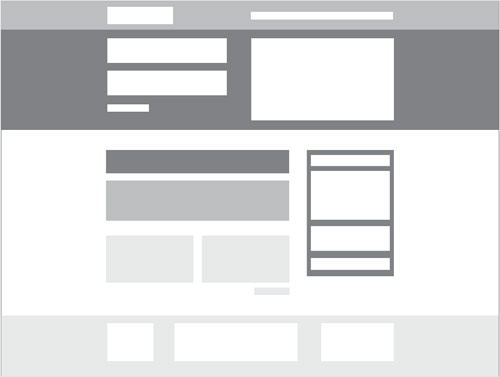
Wireframe

Planning out a wireframe also helps develop a hierarchy and gives an insight into the best positions for key elements of the design.
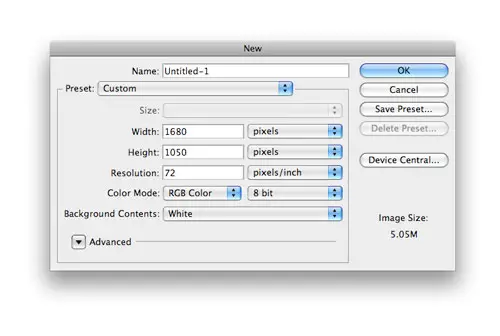
Create a new document in Adobe Photoshop, I tend to make the size of the artwork similar to that of a common widescreen monitor to give a good representation of the overall look of the site.
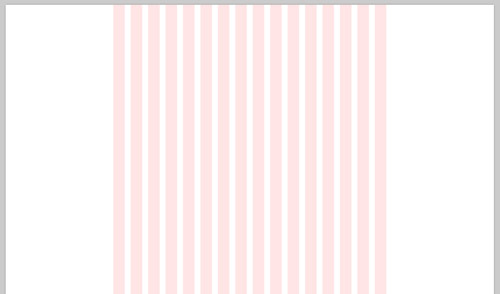
Place guides at a 960px width in the centre of the document and create a basic grid to place the page items against.
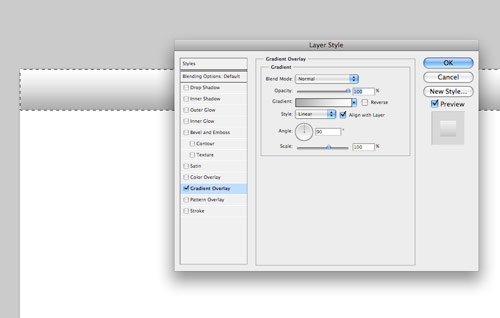
Begin with the creation of the header bar. Draw a selection across the full width of the document and fill with white. Double click the layer to open the layer styles and add a Gradient Overlay from grey to white running vertically.
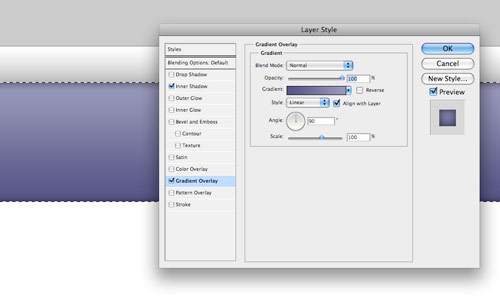
Next, draw the main header area where the featured content will be placed. On a new layer draw a selection, then add a gradient overlay with a selection of two vibrant colours. Also add a subtle inner shadow to add depth to the design.
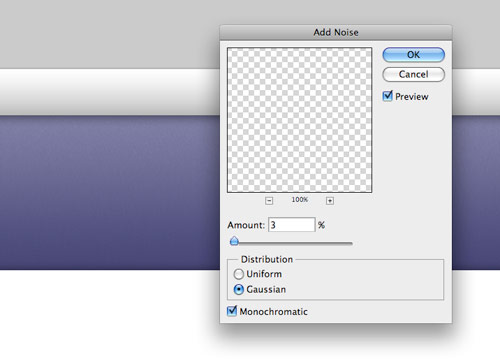
Subtle touches of texture can really bring a design to life. With the header area selected with a mask press CMD+SHIFT+C to Copy Merged, then paste on a new layer. Go to Filter > Noise > Add Noise to produce a simple texture, then set the blending mode to Multiply and reduce the opacity to suit.
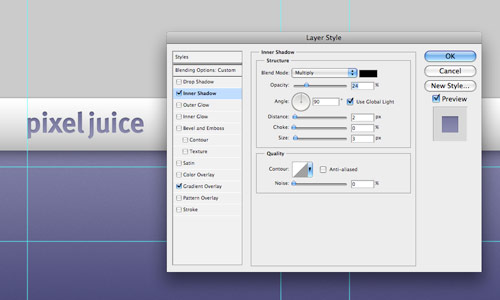
Paste in the company logo, position on screen according to the grid, then add some styling through the layer style options. Add a gradient overlay to match the feature header colours, then create a very soft inner shadow.
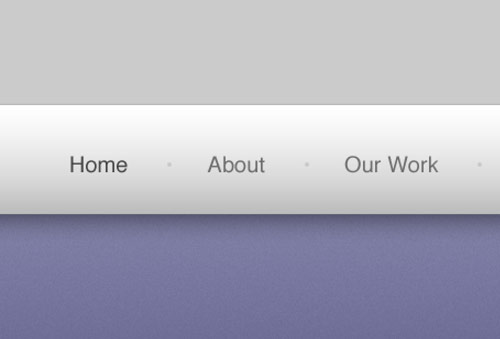
Use the Type tool to create the text of the main navigation, set the type in a mid-grey while using a slightly darker version for the active link.
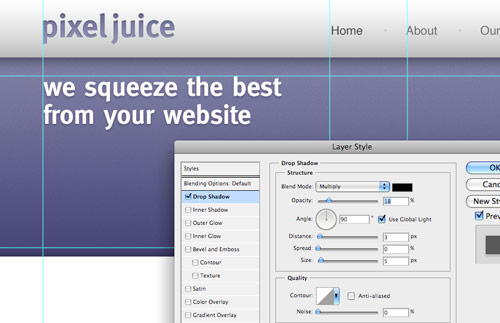
The feature header is a great place to introduce the website, with the vibrant background colour it is given main focus to the user. Use this space to place a snappy intro title in a custom font that matches the company branding.
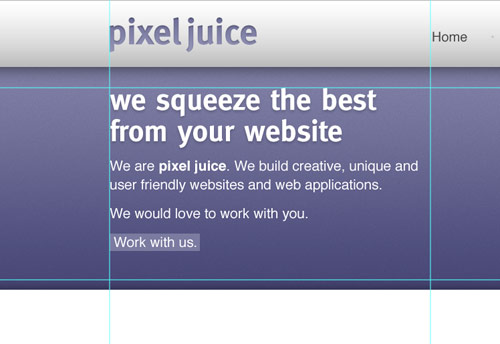
Continue fleshing out the introductory content, but this time use Arial or Helvetica as the font so that the text can be set in plain old html, without any image replacement techniques.
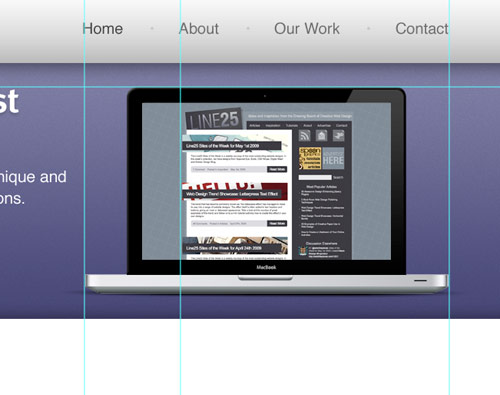
Position a laptop into the featured area (a range of examples can be found here), this fits in well with the nature of the fictional company, and makes a great focal area to display examples of work on the laptop screen.
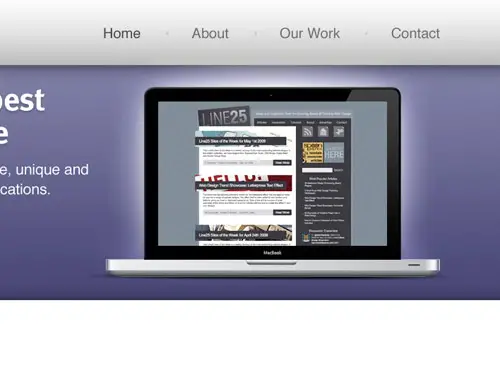
Emphasise this focal point with a radial gradient emitting from behind the laptop. This adds that little extra detail that lifts the element from the page.
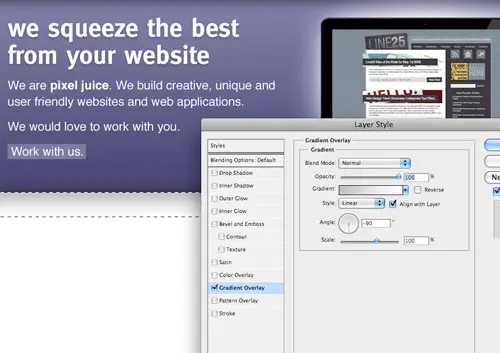
Underneath the main header, draw another selection and fill with a grey-white gradient.
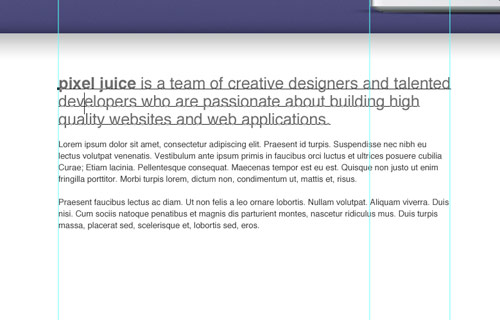
Split the mid section of the page into two columns with guides in relation to the grid lines. On the left we’ll have a main content panel, whereas the right will hold a thinner sidebar. Use the Type tool to add some dummy content. Alter the sizing and leading to give digestible and easily readable passages of text.
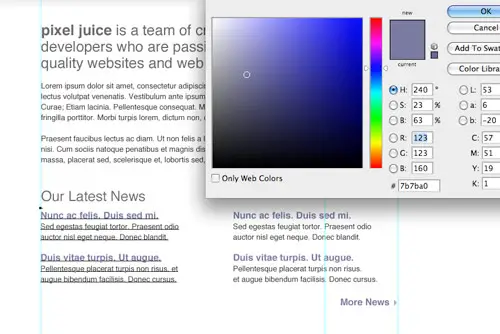
Below this main content area could hold an area to display the latest blog posts. Split the column into another two columns and draw up a selection of example post entries. The title links should stand out to the user as something clickable, so change their colour to give a visual clue.
Use the Rounded Rectangle tool to draw a box in the sidebar. The original colour doesn’t matter too much as we’ll be styling it up in the next stage.
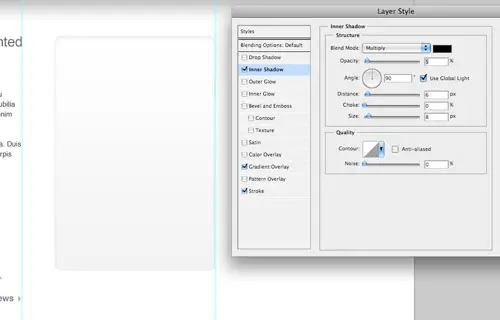
Double click the layer and add a range of layer styles, including a grey-white gradient, a thin grey stroke and a soft inner shadow.
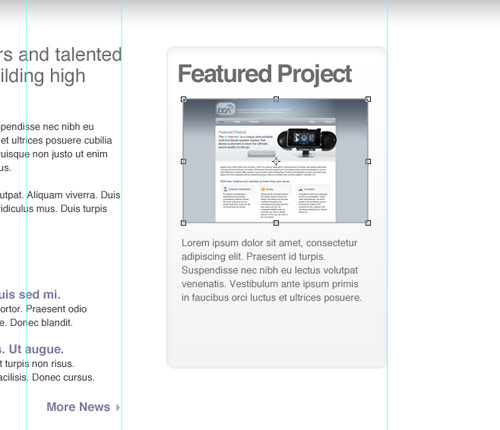
Use this sidebar panel to develop a Featured Project section. Elements could include a small screenshot and passage of text.
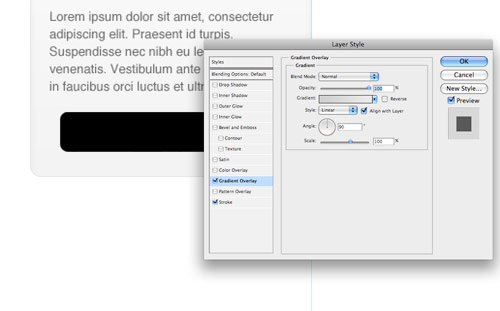
Draw another rounded rectangle to use as a button, add a couple of layer styles such as a gradient overlay and stroke to style the button to match the overall clean/grey theme.
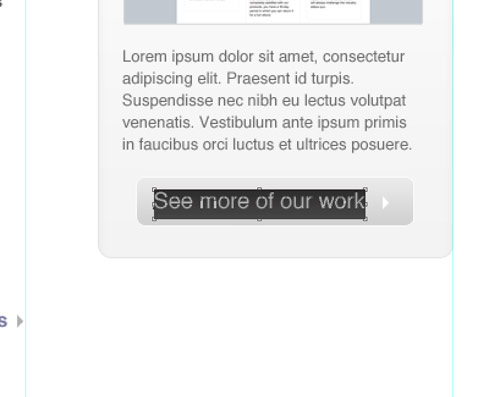
Create a short, descriptive label for the button prompting the user to continue through the site to view further projects.
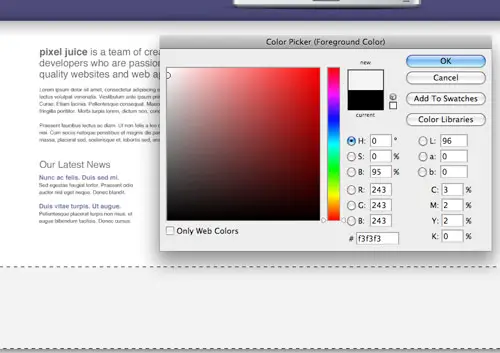
Signify the end of the content by drawing a footer area onto the screen. Fill the area with a light grey to differentiate it from the main content area.
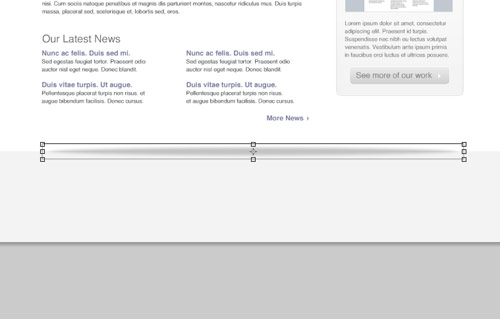
Draw a circular mask and fill it with a black to transparent radial gradient. Press CMD+T to transform the selection, squash and stretch the gradient to form a long thin shadow-like graphic.
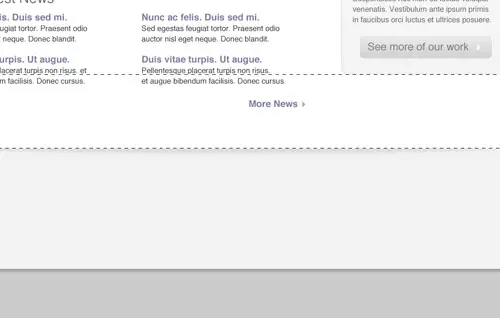
Position the shadow centrally on the screen, then delete the excess area above the footer. The result is a subtle shadow that lifts the main page, adding a little touch of detail to the design.
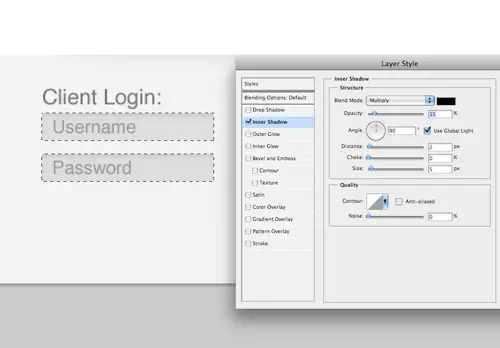
The footer area is a great place to hold secondary page elements, one example could be a client login area. Flesh out the design with the Type tool, then draw a couple of input boxes. Style the boxes with a soft inner shadow.
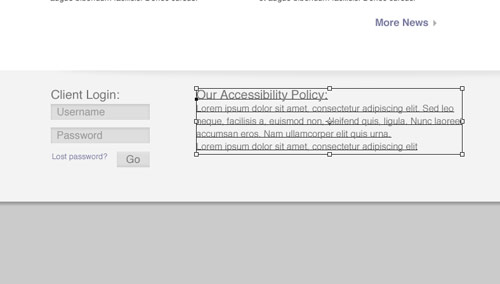
Use the central area of the footer to display a message about the company. Set the text using consistent header and body text font sizes.
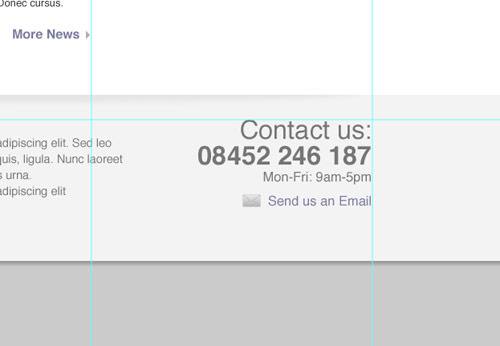
Finally, add a point of contact in the lower right. These details will then be handy to the user throughout the site. Give prominence to the most important aspects through size and stronger weights or colour.

Photoshop Website Design

The final design fits all the desired elements neatly onto the page, while keeping everything aligned to the base grid. The result is a structured and clean layout with lots of subtle greys to add depth. Colour is then used to highlight feature areas and important content.

Stay tuned for a future tutorial where we’ll look at coding up the visual into a complete XHMTL/CSS webpage.

Written by Chris Spooner

Chris Spooner is a designer who has a love for creativity and enjoys experimenting with various techniques in both print and web. Check out Chris' design tutorials and articles at Blog.SpoonGraphics or follow his daily findings on Twitter.

119 Comments

  1. Andrew says:

    I like it! ;-)

  2. Mah Milton says:

    yes, it will help to create my reviewed penis extender device site.

    • NewYorkRob says:

      Ahhh. I guess your device site will be very short sighted.

      • Sniffer says:

        Some people is not getting that it’s not a Photoshop tutorial, but a webdesign tutorial. You are supposed to know how to use this tool, guys. Or search for other tutorial explaining how to use it. I’m pretty shure that there’s a bunch of them around.

  3. Mie says:

    this is simply amazing!

  4. Codie says:

    Hey, love the tut, but could you break the steps down further, and show more screens, I felt a bit lost as to what to do at times.

  5. French6ko says:

    Thank you so much, the result is really impressive. What i would learn more is about the interaction between the 960 grid and the placement of design elements, which rules from this grid system do we have to respect to keep the design well positionned? Thank you for this nice tut!

  6. paul says:

    I agree with Codie, for people who are not as familiar with Photoshop, it’s not easy to follow, especially the Add noise part for the header area

  7. kordit says:

    nice

  8. AJ says:

    I really like the wire frame idea. Why didn’t I think of that? The transition from sketch to computer seems so arduous! I also need to thank you for the squished shadow effect. I have spent forever trying to figure out how that is done. Mystery solved.

  9. IW says:

    could you please share de .psd file? and sources..

    Thank you

  10. Hi Chris, nice tutorial and the site design is amazing. Because im new in this i had a little problems to follow the tutorial the first one, to draw a selection??? i just draw a rectangle because i didnt know how i could do it. second what size i should use for each text. U know since the size of the page is huge im like confuse.
    Ill be waiting for your answer! thanks

  11. Dave says:

    Good result.

    I agree that it needed more detailed steps

  12. Please anyone tell me something! which font size should i use for menu,

  13. Amit says:

    Hey, Thank for the tut.. Tried it, loved it!

  14. Merissa says:

    I’m going through this tutorial right now and it is great! I’m a bit lost at the mask/copy merged right before the add noise part, so I’m going to skip that and see if it all works out in the end. :-)

  15. borntobeaseo says:

    nice tutorial, nice design, excelent for company homepage, have your this as wordpress theme?

  16. John says:

    horrible!
    the outcome is looking good but the steps really need more details!!!

    for example:
    Begin with the creation of the header bar. Draw a selection across the full width of the document and fill with white.

    OK and how is the height of the header bar ?

    nobody is perfect but please look twice before releasing a tut with lots of errors.

  17. arshad says:

    Chris Spooner can you give me more detailed steps

  18. Shane says:

    This is one of the tutorials I give out to the people I am training – very solid, though the coding is the second half of this.

  19. Stuart says:

    Excellent, I liked the bare-bones approach, we can all work out skipped-over bits (header height, noise) with a little experimentation.

  20. Gloria says:

    Very interesting article!
    Thank U

  21. Ana says:

    The tutorial is good, but it is missing some steps and the images are very poor.I cant read any info at the layer style.
    Please review this tutorial.

  22. Andreas says:

    realy nice tutorial and fine design, looks professional, you can use for a corporate presence

  23. Sniffer says:

    Please keep tutorials clean as they are.
    Don’t know how to add noise? Search Google.

  24. adrian says:

    Yes Chris another good tutorial – I agree with Sniffer – if your unsure of a term – Google it – and be grateful for what you did understand.

  25. Tarique says:

    Nice! Thanks.

  26. DARIO says:

    Thanks Chris!
    One of the best tutorial I’ve ever seen.I’m beginer in coding, I know a lot of things how to do in photoshop but coding is problem for me, anyway great you’re king.

  27. Daniel says:

    cool, I tried to recreate habs, it would probably use it for your own blog, but somehow it looks a bit different, not so good as here

  28. Sian says:

    Good tutorial and classy up-to-date design. I shall give it a go.

  29. Pol39 says:

    There are many signs of hope and goodwill to improve this frightening situation. ,

  30. Boy27 says:

    In theory, each device bus can have its own address space. ,

  31. Pol13 says:

    You can compete for the gold with the best of them and do it all in style. ,

  32. Lisa Noble says:

    I do this all the time, but you still have found ways to simplify my process. Thank you. I will definitely put things into place.

  33. WoW :) Awesome tutorials. Thanks for sharing this nice post.

  34. legOstaRwArs says:

    nice tutorial.
    i love this work. thanks :)

  35. Aldis says:

    Very good article, I will try to draw the website with help of this tutorial. Thank’s for sharing!

  36. ximumu says:

    非常的感谢,又学习了.

  37. katie says:

    Hey there! Could you send me the PSD for this? It would be extremely helpful for following your steps. Thanks a lot!

  38. katie says:

    Hey. I have followed this tutorial and added my own twist to it as well. I will post my website soon so you all can see. thanks for this :)

  39. Marco says:

    THIS IS HORRIBLE! DO NOT TEACH WITH THIS!

  40. Neal says:

    MaTT iiS ReAllY GaY!! AnD Dis WeBsiTE SuCKs!!

  41. Matt Hall says:

    FUCK DIS SHIT NIGGA

  42. bopadre says:

    this site is not good it dose not meet its pourpase and it is just simply awfull it sux 100% possitive

  43. ben says:

    ruben is gay

  44. Great tutorial,
    I’m sure a lot of people have followed this tutorial and probably not come to quite the same result. I think it takes years of practice designing website, learning about white space and keeping your page not too cluttered.
    I think this is a good tutorial but other designers who are learning need to think for themselves a little bit and add in their own style. Don’t be a sheep.

  45. Mexicano (Brazil) says:

    Obrigado!

  46. This is a great reference for website design.

Comments are now closed